This web-based music player dynamically displays the currently playing song or episode from your Spotify account. It fetches real-time data from Spotify's API and shows details like the song title, artist, and album art. Front-end of this project is also available at CodePen.

You might wonder, "Do we need middleware to display Spotify’s currently playing track?" The short answer: Yes!
Real-world APIs, like Spotify's, require proper authentication. You can't safely include credentials like client IDs, secrets, or tokens directly in your front-end JavaScript because doing so would expose them, compromising your app's security. Instead, we use a secure middleware to handle communication with Spotify’s API, keeping sensitive information safe.
Set up middleware to handle API requests. Instead of calling Spotify’s API directly (e.g., https://api.spotify.com/user/username/get-now-playing), your app will securely call an endpoint like https://mymiddleware.com/get-now-playing to fetch data in JSON format.
- HTML: Defines the structure and layout of the music player.
- CSS: Provides styling, animations, and ensures responsive design across different devices.
- JavaScript: Handles dynamic updates, fetching data, and interacting with the backend.
- Cloudflare Workers: A serverless backend for securely handling API requests, including the Spotify API calls.
- Spotify Web API: Used to retrieve real-time information about the currently playing track or episode.
Here’s what I’m planning to add or improve in future versions of this project:
- Add a button to redirect the user to the current playing item for direct listening.
- Improve the design with more appealing CSS animations and transitions.
- Ensure the player is fully responsive and optimized for mobile devices.
- Keep a log of recently played tracks or episodes.
- Add auto-refresh functionality to update the track every few seconds without a manual refresh.
- Track name must only scroll when it's longer than card width
Cloudflare Workers offer a serverless platform to run code snippets globally. Cloudflare provides 100,000 free requests per day, making it perfect for this project.
-
Sign up for Cloudflare: Register here.
-
Create a Worker: Navigate to the Cloudflare Workers dashboard after logging in.
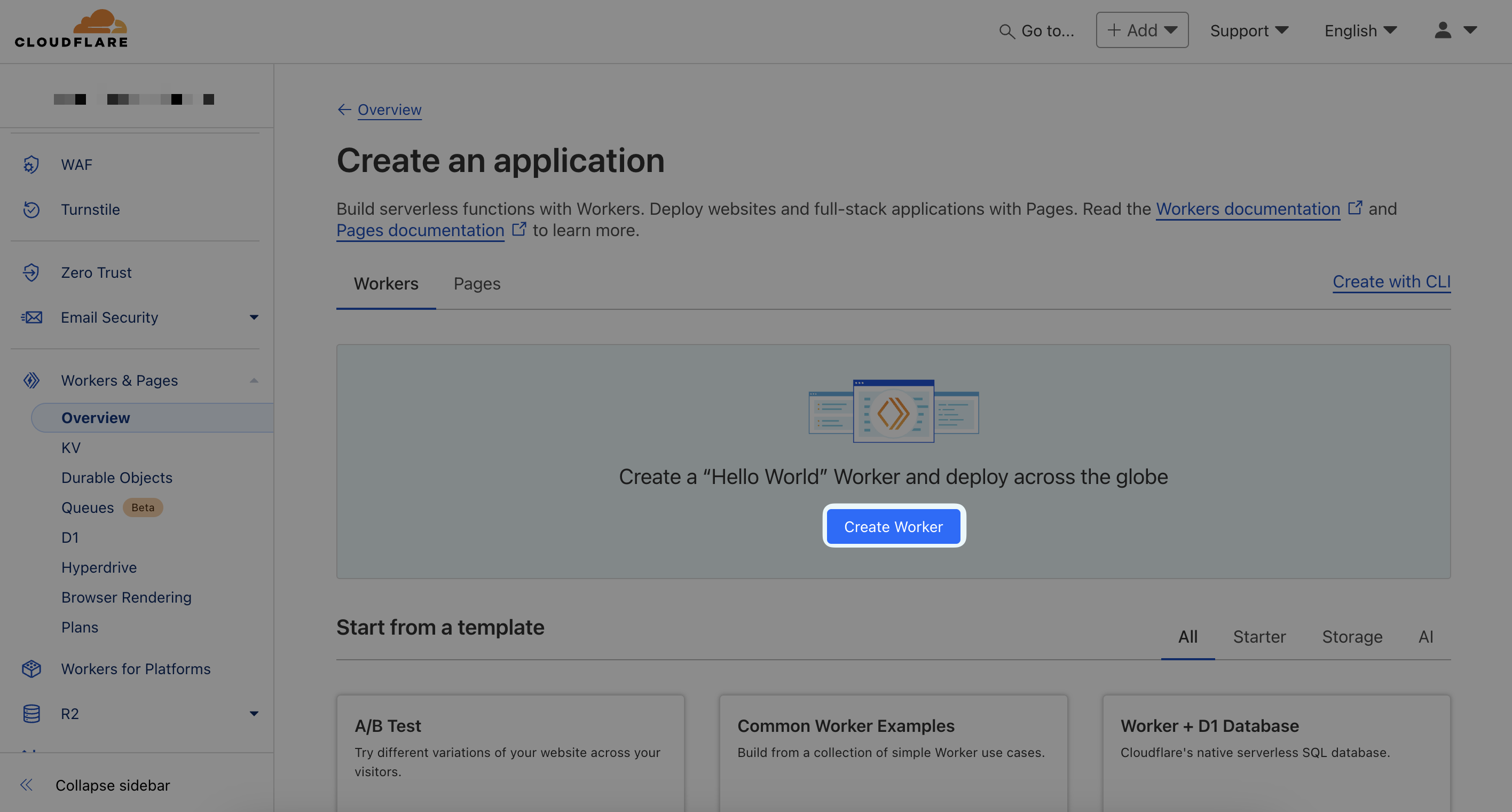
-
Name Your Worker: Choose a name like
spotify. Your URL will be in this format:https://[username].workers.dev. Click "Deploy".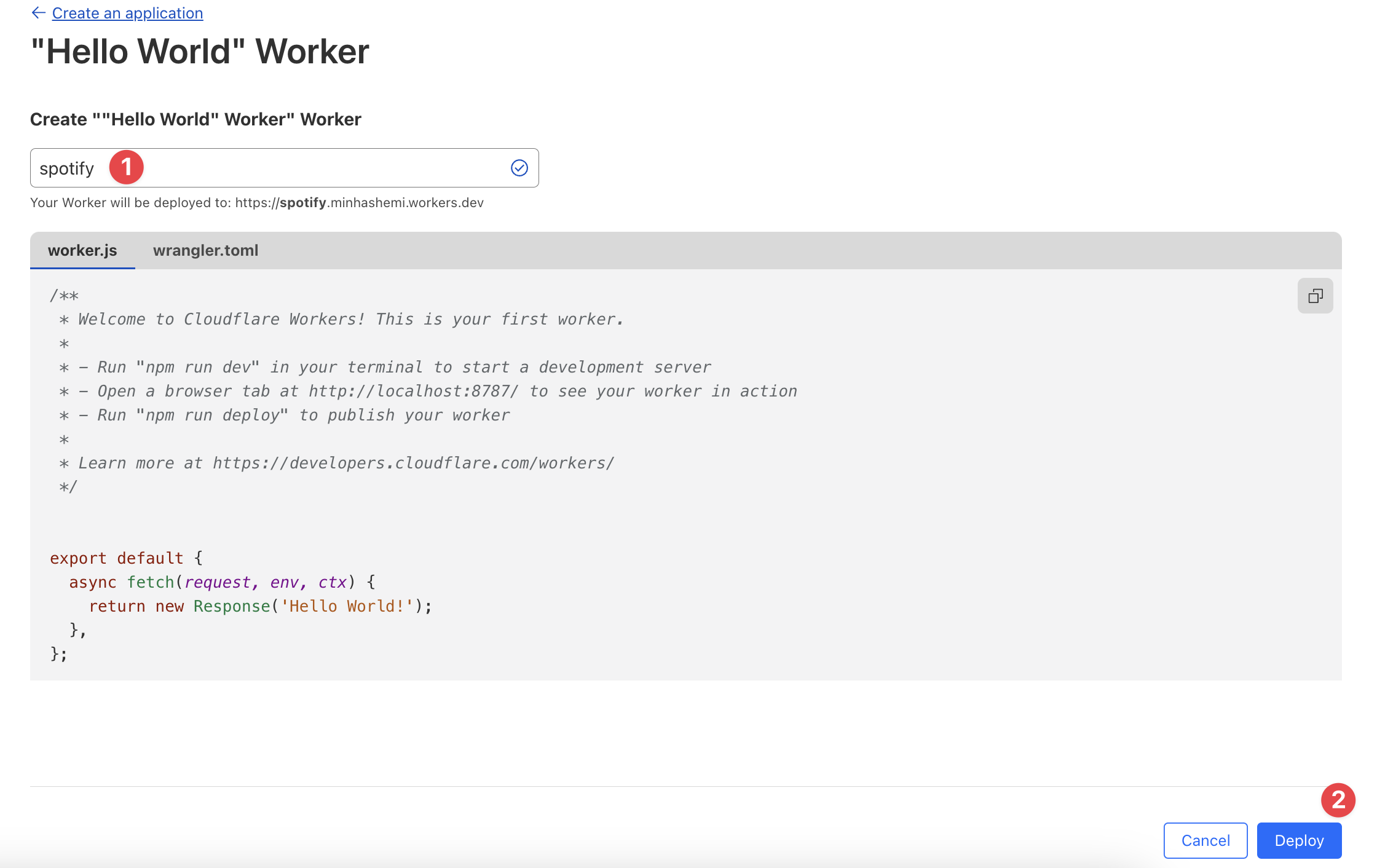
-
Modify Worker Code: In the code editor, replace the default code with the contents of
back-end/worker.jsfrom your repository.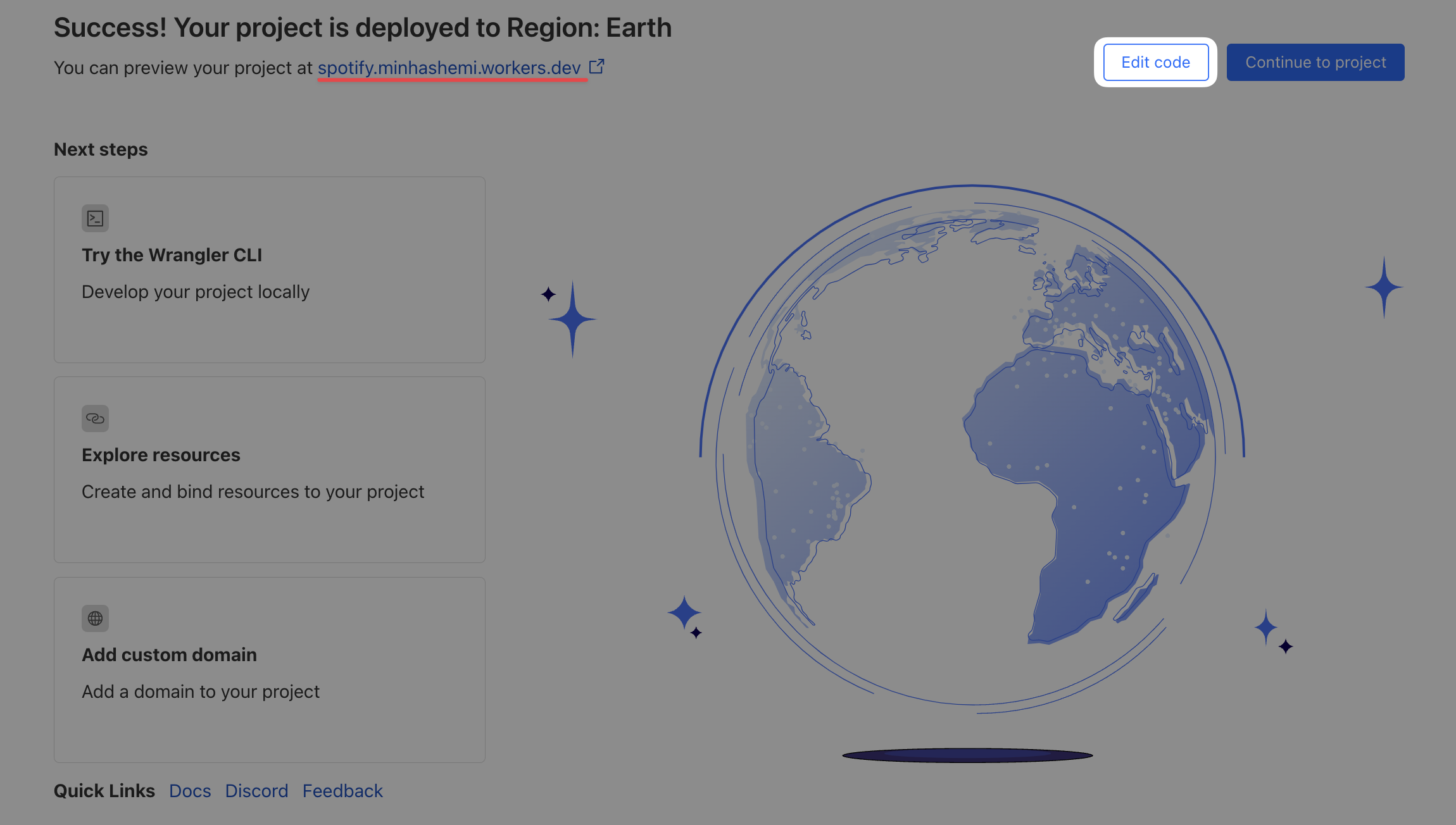
-
Test the Worker: Open the terminal in the right pane of the Cloudflare dashboard and enter:
https://spotify.[username].workers.dev/test
If you see "Middleware setup successful!", you're good to go! If not, repeat the setup.
-
Deploy the Worker: Click "Save and Deploy".
-
Fork the Repository: Go to this GitHub repository and fork it.
-
Clone the Repository: Clone it to your local machine:
git clone https://github.com/your_username/Spotify-Widget
-
Modify JavaScript Files: Open
front-end/script.jsand replace the following lines:var serviceHost = "https://spotify.minhashemi.workers.dev"; var spotifyUser = "Amin";
Update
serviceHostwith your Cloudflare Worker URL andspotifyUserwith your Spotify username. -
Commit and Push Changes:
git add .
git commit -m "Updated service host and user details"
git push
-
Sign in to Spotify: Log in here.
-
Open the Developer Dashboard: Visit Spotify Developer Dashboard.
-
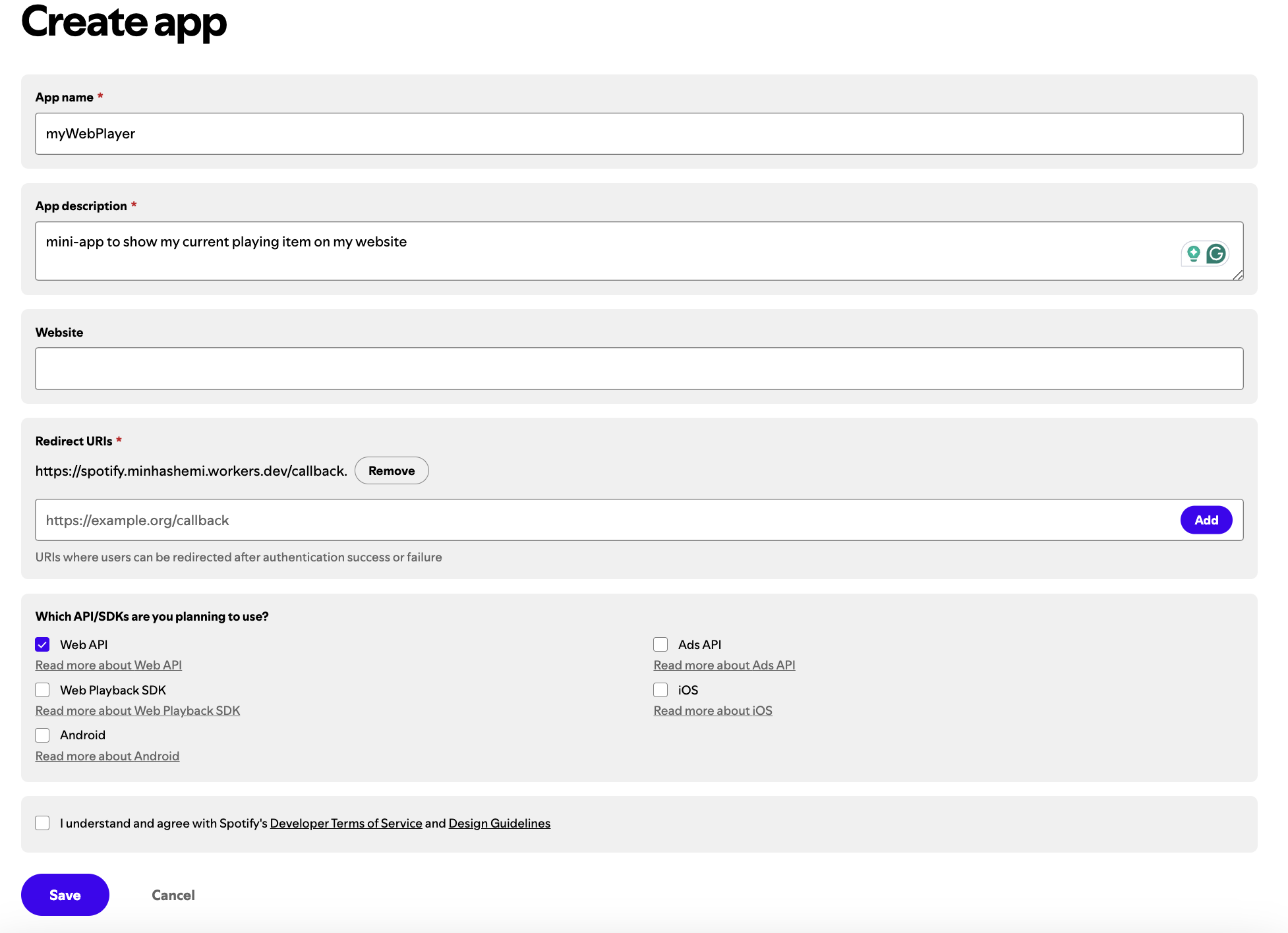
Create a New App:
- Name it
myWebPlayer. (Note: Spotify doesn't allow apps to start with "spot".) - Add a description.
- In "Redirect URIs", add:
https://spotify.[username].workers.dev/callback
- Select "Web API" from the "Which API/SDKs are you planning to use?" menu.
- Agree to the terms, then click "Save".
- Name it
-
Keep This Tab Open: You’ll need the Client ID and Client Secret from this page.
-
Retrieve Spotify App Credentials: In the Spotify Developer Dashboard under "Settings", copy your Client ID and Client Secret.

-
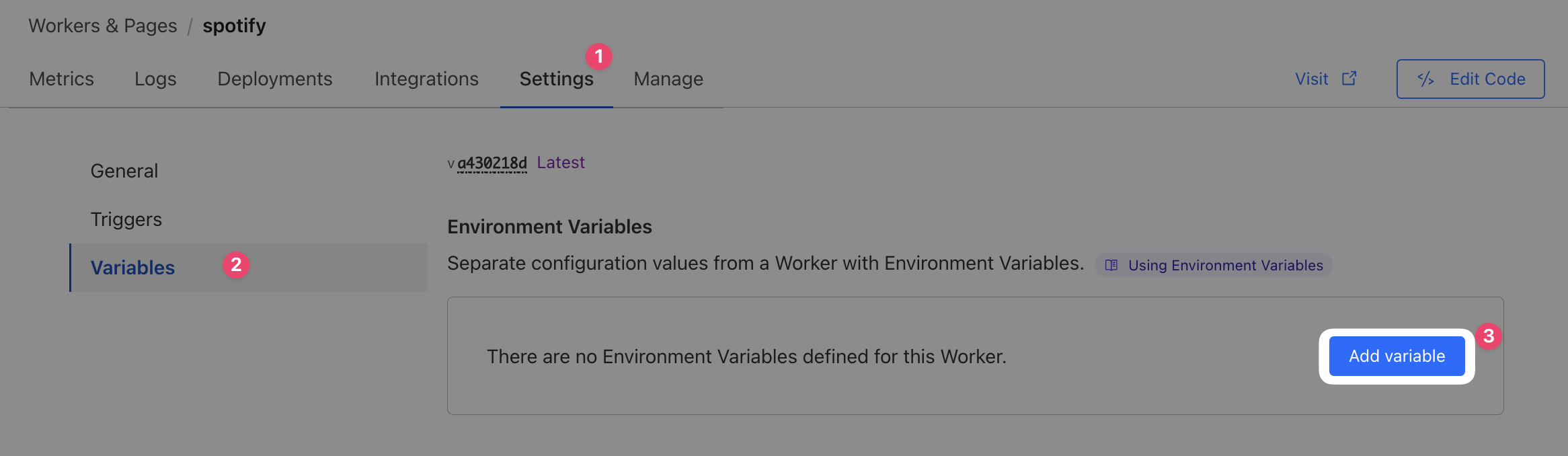
Set Environment Variables in Cloudflare:
- In Cloudflare Worker settings, go to the Variables section.
- Add
CLIENT_IDandCLIENT_SECRETas variables.
-
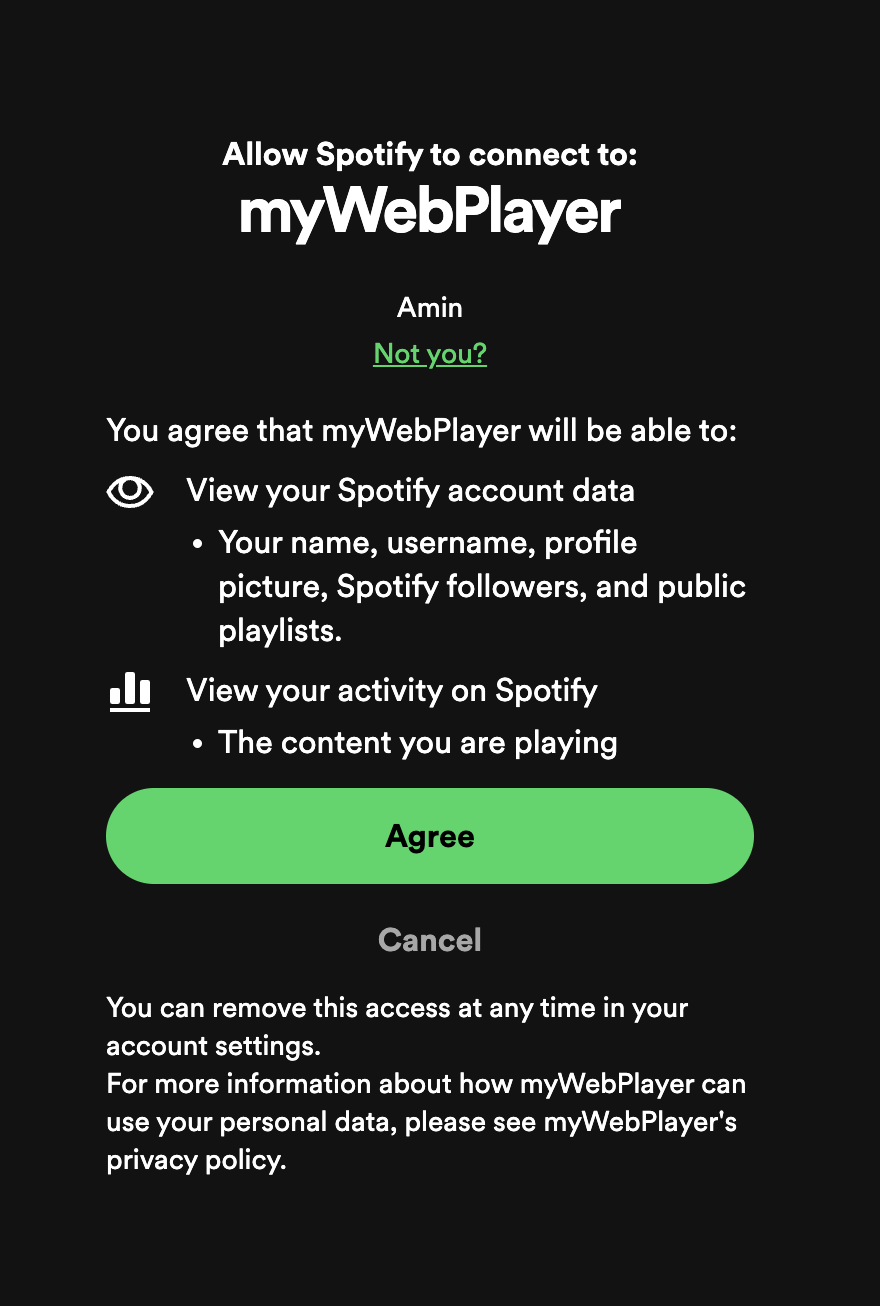
Authorize Your Middleware:
- Visit:
https://spotify.[username].workers.dev/authorize
- You’ll see a screen asking you to grant permission for the app. Click Agree.
- Visit:
-
Get the Refresh Token:
- After granting permissions, a refresh token will be displayed in your browser. Copy it.
-
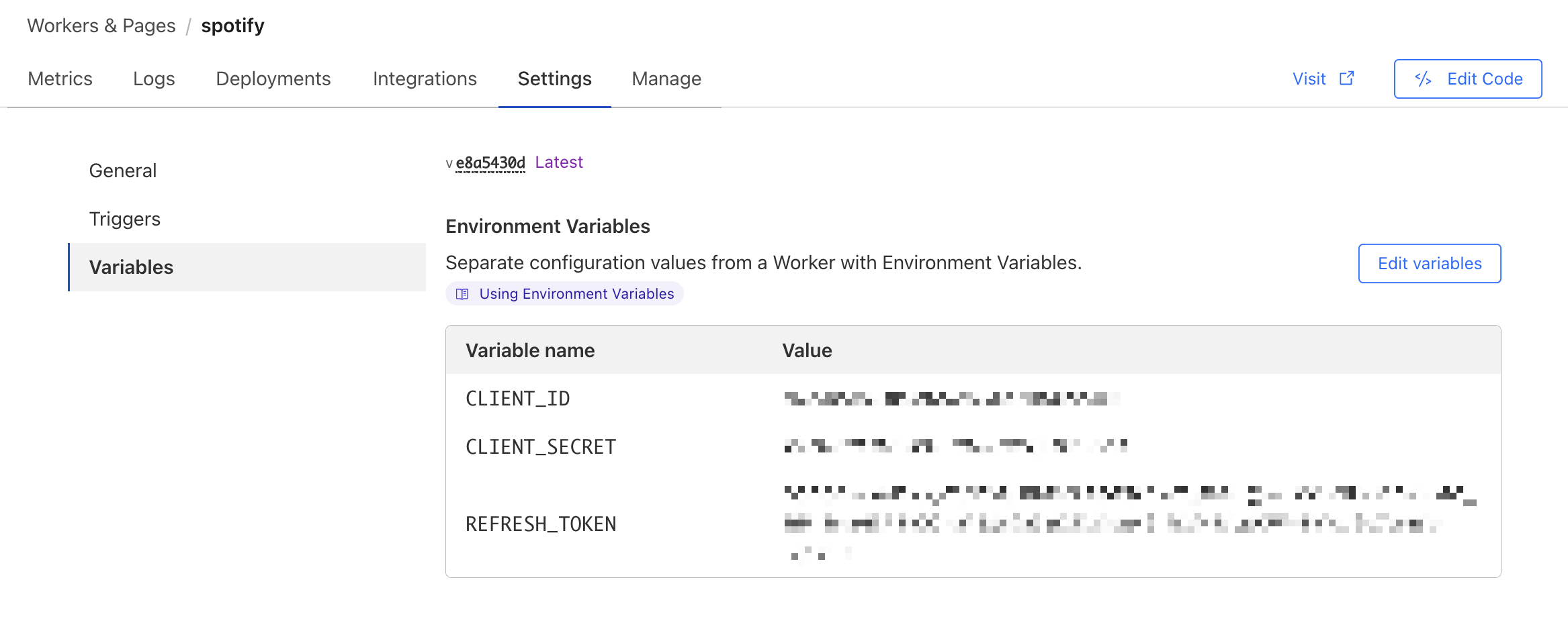
Add the Refresh Token to Cloudflare:
- Return to Cloudflare Worker settings.
- Add a new variable for the refresh token and paste the value you copied.
🎉 That’s it! Your Spotify player is now set up and ready to display your current track. Feel free to experiment with the To-Do list and improve the player!