A simple desktop overlay app that captures text from your screen using Azure AI Vision and translates it with Azure Translator. Perfect for reading foreign text in games, websites, or any application. Because it uses Azure, the latency is really low, and the accuracy is high.
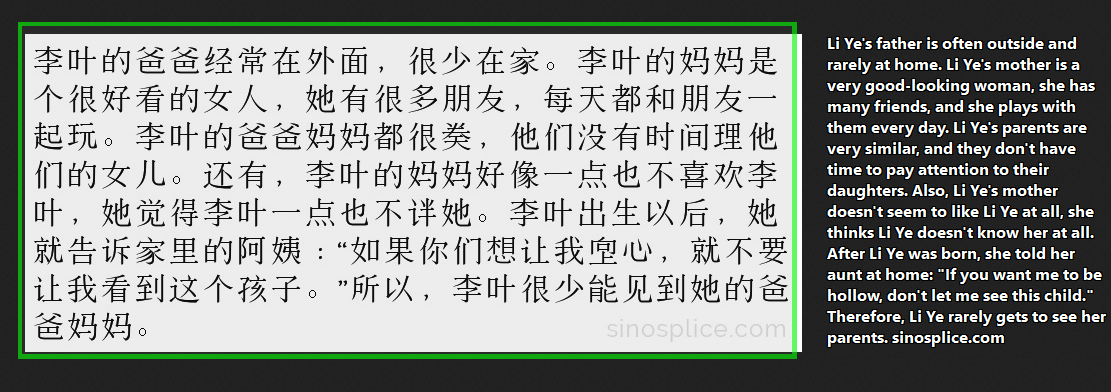
- Draggable selection box: Move and resize the green overlay to select text areas
- Real-time OCR: Uses Azure AI Vision to extract text from screenshots
- Instant translation: Translates captured text using Azure Translator
- Always on top: Stays visible over other applications
- Floating text display: Shows OCR results and translations as text attached to the overlay
- Position the box: Drag the green overlay over the text you want to translate
- Resize if needed: Drag from the bottom-right corner to resize the selection area
- Right-click to capture: The app will OCR the selected area and translate the text
- Close when done: Middle-click or press Escape to exit
- Python 3.7+
- Azure AI Services account (Vision + Translator)
-
Clone or download this repository
-
Install dependencies:
pip install -r requirements.txt
-
Set up your Azure credentials in
main.py:AZURE_VISION_ENDPOINT = "your-vision-endpoint" AZURE_VISION_KEY = "your-vision-key" AZURE_TRANSLATOR_ENDPOINT = "your-translator-endpoint" AZURE_TRANSLATOR_KEY = "your-translator-key" AZURE_TRANSLATOR_REGION = "your-region" SOURCE_LANGUAGE = "source-language" # e.g., "zh" for Chinese | can leave empty for auto-detection
- Create an Azure account at portal.azure.com
- Create a Computer Vision resource for OCR
- Create a Translator resource for translation
- Copy the endpoints and keys to the config section in
main.py
You can use the free tiers of both resources (F0) for limited usage, which is usually enough for personal use.
Run the application:
python main.py- Left-click + drag: Move the overlay
- Left-click bottom-right corner + drag: Resize the overlay
- Right-click: Capture and translate text in the selected area
- Middle-click or Escape: Close the application
- Minimum selection size is 50x50 pixels (Azure requirement)
- Requires active internet connection for Azure services (and keys)
- Support for multiple target languages (unlikely)
- Offline OCR option
- Offline translation option (unlikely)
- Configuration file for Azure credentials
- Hotkey support for capture without clicking
- Text history/clipboard integration
- PyQt6: GUI framework
- mss: Fast screenshot capture
- azure-ai-vision-imageanalysis: Azure Computer Vision OCR
- azure-ai-translation-text: Azure Translator service
- Pillow: Image processing support
It just stands for "Hovering OCR".
This project is licensed under the MIT License. See the LICENSE file for details.