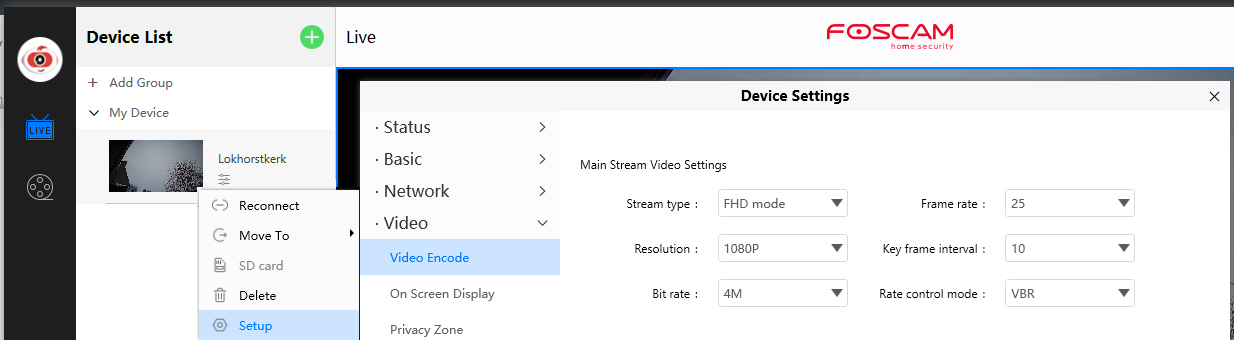
I recently bought a Foscam FI9936P IP camera to use for streaming to Youtube with OBS. Using the gstreamer library I managed to capture the FHD stream correctly with low latency (details below). Next challenge was to control the pan, tilt, zoom and presets from OBS. The camera supports control through cgi commands, the most simple way to get custom buttons in OBS seems to be a Custom Browser Dock. So I started off with a simple local .html file with javascript to send the commmands to the camera. Unfortunately the browser refused to connect to the camera due to Cross Origin Request Blocking. This was solved by running a local webserver using python that serves the Custom Browser Dock page and forwards the cgi commands to the camera. The final scripts work fine with the Foscam FI9936P camera and might run out-of-the-box with other foscam IP camera models as well. Support for other brand IP cameras can be added by writing a .html file with the correct cgi commands.
The PTZControlServer.py python script implements the local webserver. To get it running, install python and start the server with the commandline 'python PZTControlServer.py'. If the server starts correctly, it should tell you that it is 'started':
> python PTZControlServer.py -port 8081 -type foscam -url http://192.168.2.100:88 -pwd PASSWORD
PTZControlServer started http://localhost:8081 for foscam camera http://192.168.2.100:88
If not, it is likely that port 8081 is already used by another server. Selecting another random port number will fix that. The server accepts the following command line parameters:
| key | value |
|---|---|
| port | the service port (defaults to 8081) |
| type | the camera type (defaults to 'foscam') |
| url | url of the camera (protocol://ip-address:port) |
| usr | the name of the user (defaults to 'admin') |
| pwd | the password |
To test the server, launch your favorite browser and enter the following URL:
http://localhost:8081?hidestandardpresets
When the cgi requests to the camera succeed, the Presets list should be populated and you can use the <>^v buttons to tilt and pan the camera. The query parameter 'hidestandardpresets' can be used to hide the presets TopMost, BottomMost, RightMost and LeftMost.
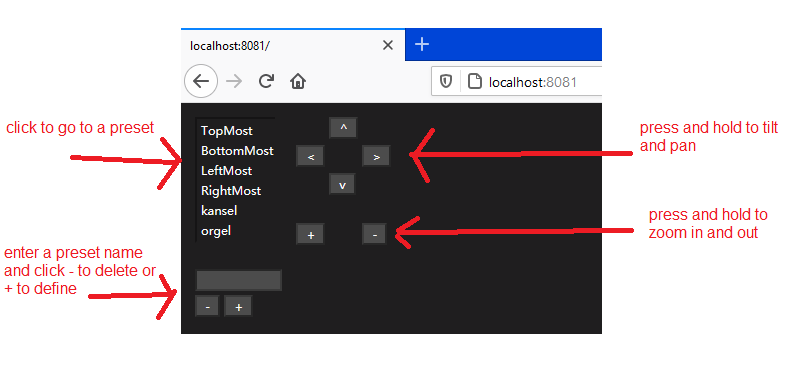
To delete or add a preset, enter the name of the preset in the lower text field and press the + (add) or - (delete) button.
The actual .cgi commands are present in the file 'foscam.html'. When another 'type' is specified, the server will look for an .html file with that name. The javascript in the .html file uses a XMLHttpRequest to send the commands to the server. The server forwards all requests with a non-empty path to the camera.
To support more cameras you can start the server without the camera url and password and specify them on the page URL: http://localhost:8081?url=http://192.168.2.100:88&pwd=PASSWORD.
Now close the browser window, launch OBS, select 'View | Docks | Custom Browser Docks ...' and configure a dock with the localserver and the server port:
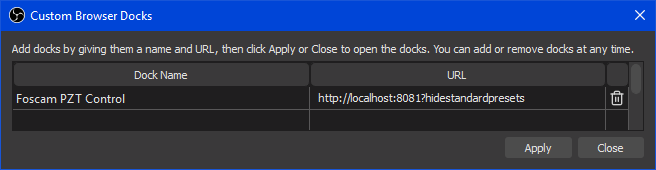
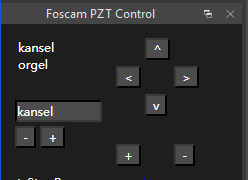
Hit Apply and Close and the new docking panel will appear within 20 seconds:
The OBS Scene Execute Command' script implements executing an cgi command upon scene changes. To automatically switch to camera position, specify the appropriate command in the script arguments. The FOSCAM cgi command to go to a preset point is:
curl.exe http://CAMERAIPADDRESS:88/cgi-bin/CGIProxy.fcgi?usr=admin^&pwd=PASSWORD^&cmd=ptzGotoPresetPoint^&name=SCENE_VALUE
In the commandline, the & characters must be escaped with a ^ to prevent the command interpreter to start a new command.
I configure the move usually to take place in a scene where a different camera is selected to prevent dizziness of the audience.
I could get a steady 25 fps Full HD stream from the camera in OBS using the GStreamer Library and the OBS GStreamer plugin'.
Download and install gstreamer-1.0-mingw-x86_64-1.18.4.msi from https://gstreamer.freedesktop.org/data/pkg/windows
Add to system or user path: C:\gstreamer\1.0\mingw_x86_64\bin.
Download obs-gstreamer 0.30.0 and unpack the obs-gstreamer.dll library to "C:\Program Files\obs-studio\obs-plugins\64bit".
Now the 'GStreamer Source' should be in the OBS New Source menu.
The following pipeline gives me a good stream:
rtspsrc location=rtspt://admin:PASSWORD@IPADDRESS:88/videoMain latency=120 ! rtph264depay ! h264parse ! avdec_h264 ! video.
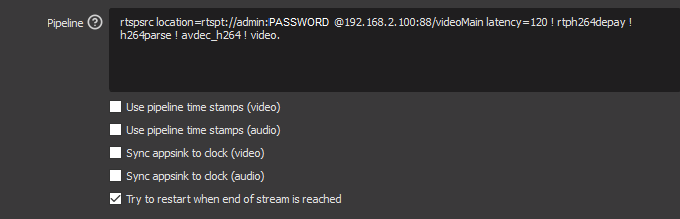
The latency was tuned to yield the same latency as the connected USB camera.
The pipeline seems to work only when the camera is set to the same format as the OBS canvas: (Full HD).
I guess that for different formats, a video conversion should be added to the pipeline.