Veo AI video generation service creates beautiful videos through prompts and starting images.
API home page: Ace Data Cloud - Veo Video Generation
This article will introduce the integration instructions for the Veo Videos Generation API, which can generate official Veo videos by inputting custom parameters.
To use the API, you need to first apply for the corresponding service on the Veo Videos Generation API page. After entering the page, click the "Acquire" button, as shown in the image below:

If you are not logged in or registered, you will be automatically redirected to the login page inviting you to register and log in. After logging in or registering, you will be automatically returned to the current page.
There is a free quota available for first-time applicants, allowing you to use the API for free.
First, understand the basic usage method, which involves inputting the prompt prompt, the action action, the array of reference images for the first and last frames image_urls, and the model model to obtain the processed result. You first need to simply pass a field action with the value text2video, which mainly includes three actions: text to video (text2video), image to video (image2video), and get 1080p video (get1080p). Then, we also need to input the model model, which currently mainly includes veo2, veo2-fast, veo3, veo31, veo31-fast, veo31-fast-ingredients, and veo3-fast, with specific content as follows:
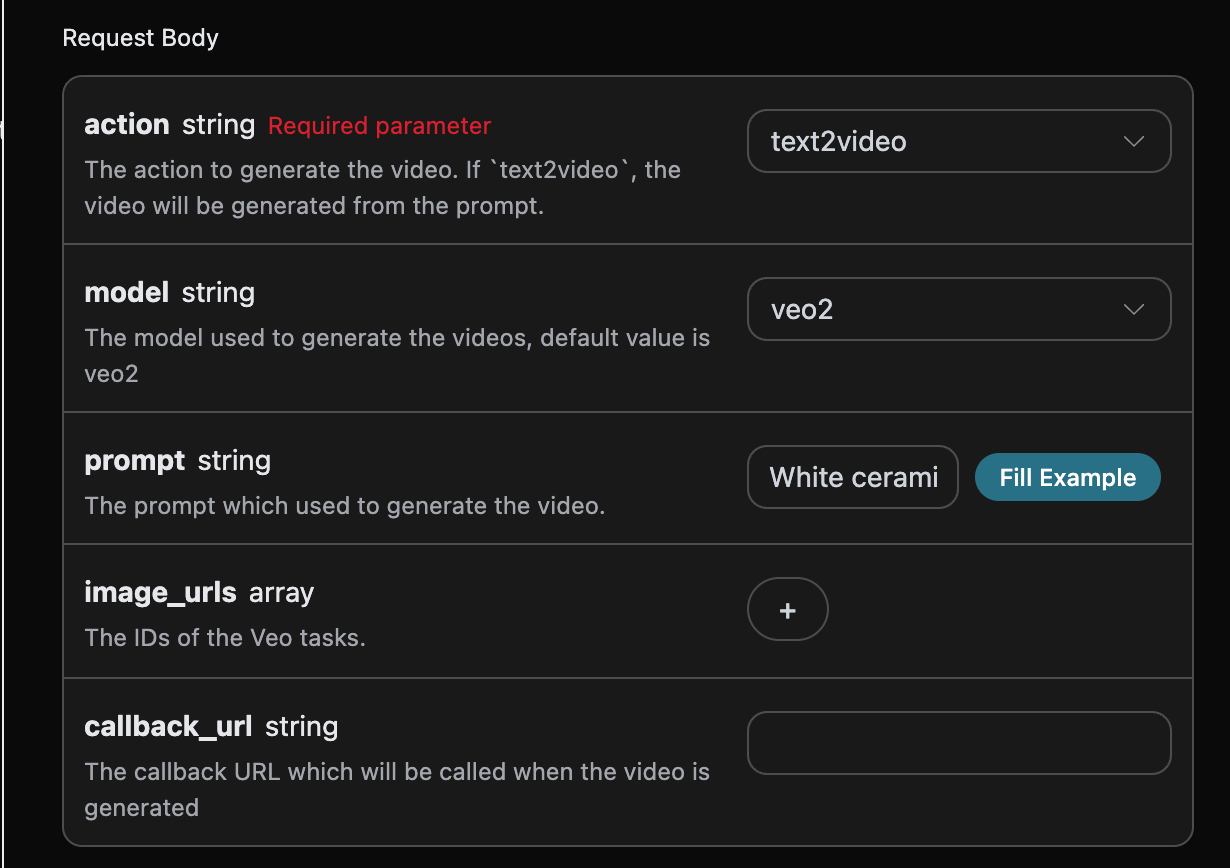
Here we can see that we have set the Request Headers, including:
accept: the format of the response result you want to receive, filled in asapplication/json, which means JSON format.authorization: the key to call the API, which can be directly selected after application.
Additionally, the Request Body is set, including:
model: the model for generating the video, mainly includingveo2,veo2-fast,veo3,veo31,veo31-fast,veo31-fast-ingredients, andveo3-fast.action: the action for this video generation task, mainly including three actions: text to video (text2video), image to video (image2video), and get 1080p video (get1080p).image_urls: when selecting the image to video actionimage2video, you must upload the reference image links for the first and last frames, with a maximum of three reference images.prompt: the prompt.callback_url: the URL to receive the callback result.
| Model Name | Supported Modes | Image Input Rules |
|---|---|---|
| veo2-fast | Text to video (no image) Image to video mode (with image) |
Only supports 1 image → First frame mode |
| veo3-fast | Text to video (no image) Image to video mode (with image) |
1 image → First frame mode 3 images → First and last frame mode |
| veo31-fast | Text to video (no image) Image to video mode (with image) |
1 image → First frame mode 3 images → First and last frame mode |
| veo31-fast-ingredients | ❌ Text to video (not supported) ✅ Mandatory multi-image fusion (must provide images) |
1-3 images → Multi-image fusion mode (up to 3 images) |
| veo2 | Text to video (no image) Image to video mode (with image) |
1 image → First frame mode 3 images → First and last frame mode |
| veo3 | Text to video (no image) Image to video mode (with image) |
1 image → First frame mode 3 images → First and last frame mode |
| veo31 | Text to video (no image) Image to video mode (with image) |
1 image → First frame mode 3 images → First and last frame mode |
- General Logic:
- No image input → Automatically triggers text to video mode.
- Image input → Triggers image to video mode (specific behavior determined by the number of images).
- Image to Video Mode Types:
- First frame mode (1 image): The first frame is fixed as the input image.
- First and last frame mode (2 images): The first and last frames are fixed as the input images.
- Multi-image fusion mode (1-3 images): Only supported by
veo31-fast-ingredients, fuses multiple images to generate a video.
- Mode Classification:
- Fast Mode:
veo2-fast,veo3-fast,veo31-fast,veo31-fast-ingredients. - Quality Mode:
veo2,veo3,veo31(higher generation quality).
- Fast Mode:
- The only model that requires image input:
veo31-fast-ingredientsmust provide images (1-3 images), otherwise it cannot run. - Image quantity limit:
- Except for
veo31-fast-ingredients, other models support a maximum of 3 images input.
- Except for
After selection, you can find that the corresponding code is also generated on the right side, as shown in the image below:
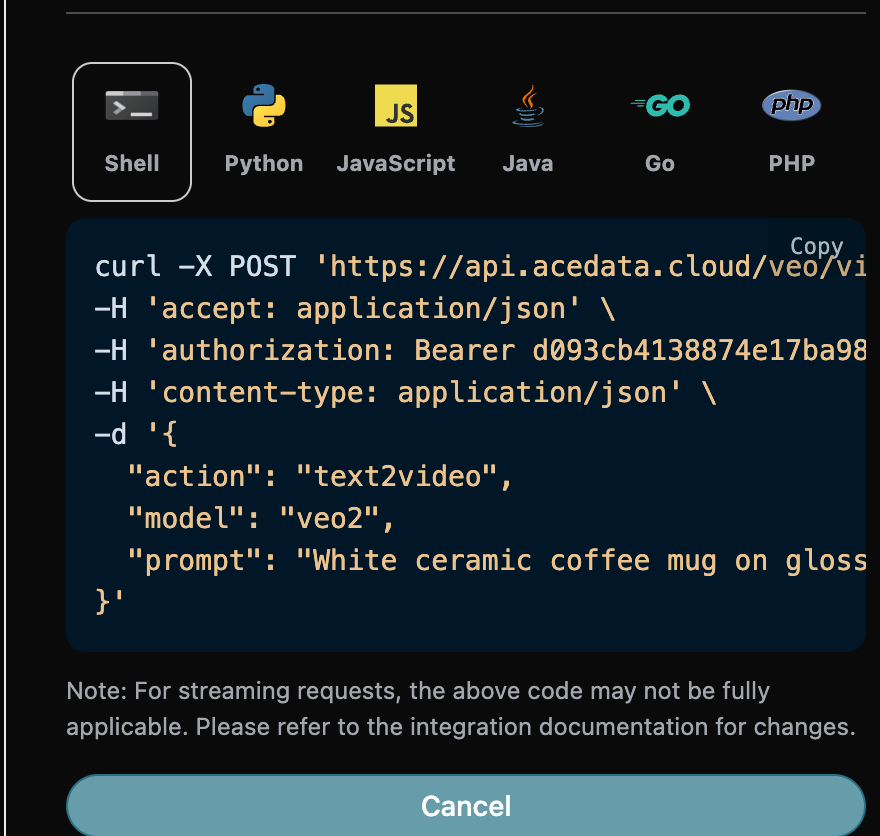
Click the "Try" button to conduct a test, as shown in the image above, and we obtained the following result:
{
  "success": true,
  "task_id": "dd01fc69-e1f7-4b68-aa8c-463f6b748d11",
  "trace_id": "9906dac0-1516-41dc-9fe3-067ca1ba8269",
  "data": [
    {
      "id": "253eedc47f1c4eb2a370ed2312168f4b",
      "video_url": "https://platform.cdn.acedata.cloud/veo/dd01fc69-e1f7-4b68-aa8c-463f6b748d11.mp4",
      "created_at": "2025-07-25 16:07:43",
      "complete_at": "2025-07-25 16:10:28",
      "state": "succeeded"
    }
  ]
}
The returned result contains multiple fields, described as follows:
success: the status of the video generation task at this time.task_id: the ID of the video generation task at this time.data: the result of the video generation task at this time.id: the video ID of the video generation task at this time.video_url: the video link of the video generation task at this time.created_at: the creation time of the video generation task at this time.complete_at: the completion time of the video generation task at this time.state: the status of the video generation task at this time. We can see that we have obtained satisfactory video information, and we only need to obtain the generated Veo video based on the video link address in thedataof the result.
Additionally, if you want to generate the corresponding integration code, you can directly copy the generated code, for example, the CURL code is as follows:
curl -X POST 'https://api.acedata.cloud/veo/videos' \
-H 'accept: application/json' \
-H 'authorization: Bearer {token}' \
-H 'content-type: application/json' \
-d '{
  "action": "text2video",
  "model": "veo2",
  "prompt": "White ceramic coffee mug on glossy marble countertop with morning window light. Camera slowly rotates 360 degrees around the mug, pausing briefly at the handle."
}'For more info, please check below APIs and integration documents.
| API | Path | Integration Guidance |
|---|---|---|
| Veo Videos Generation API | /veo/videos |
Veo Videos Generation API Integration Guide |
| $t(document_title_veo_tasks_api) | /veo/tasks |
Veo Tasks API Integration Guide |
Base URL: https://api.acedata.cloud
If you meet any issue, check our from support info.